A working folder and a CLAUDE.md file give Claude your context the moment a task starts. Here is how to set them up in about ten minutes.
MJBy Micah Johnson · Biggest Goal7 min readClaude Cowork · Setup guide
Imagine walking into a pitch-black room. You cannot tell if it is a kitchen or an office. You feel along the walls, bump into furniture, and stub your toe before you work out where anything is. You get there eventually, but slowly, and with a few bruises.
That is Claude when you open a task with no folder and no CLAUDE.md file. It works, but it is less effective, because it is spending effort feeling around in the dark. It does not know what your business does, who your people are, how you name things, or what "done" looks like to you.
Opening a task in your working folder, the one that holds your curated context and your CLAUDE.md, turns the light on. Now the room is obvious, and Claude gets to work the second it walks in. It works either way. One way is just far better.
The folder is the light switch
Say you ask for "a follow-up email to the client from yesterday's call." In the dark, Claude has to ask which client, what call, what you usually say, how you sign off. You spend your time typing and explaining your whole world before any work gets done, and then you do it all again in the next task. With the light on, Claude already knows your clients, where your notes live, and that you never start an email with "Hey." It just drafts the email, and gets far closer to a perfect result.
✕ No folder, no CLAUDE.md
Claude works in the dark
"Which client? What call?"
You re-explain your whole world
More back-and-forth every task
Feeling around the room
✓ Opened in your folder
The light is on
Already knows your clients and notes
Knows how you write
Drafts it right, on the first try
Gets to work the second it walks in
Same request. Very different results. The folder is the light switch.
There are only three pieces
This sounds technical. It is not. There are three things to worry about, and one of them is just a normal folder.
1
The folder
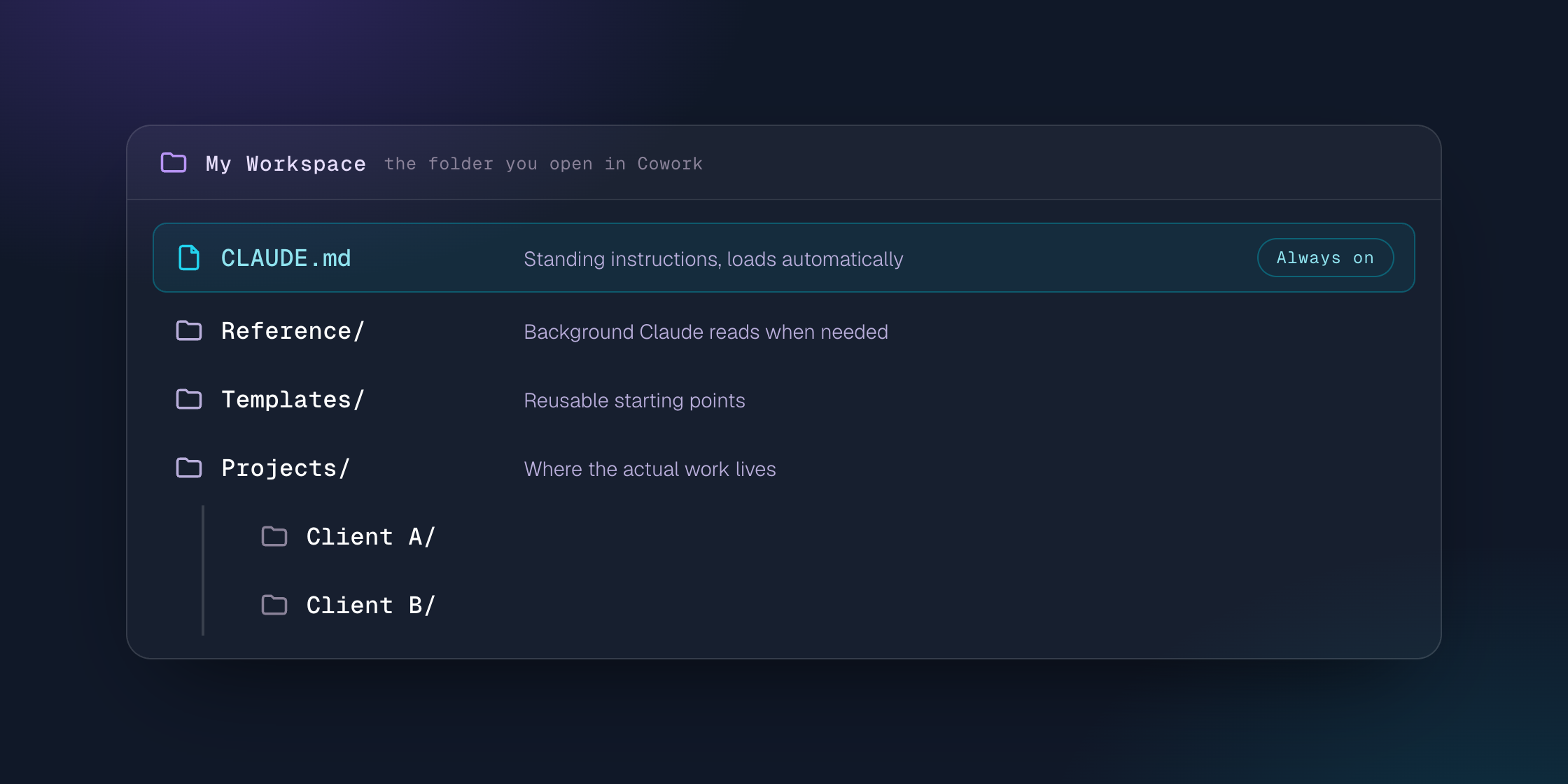
A normal folder on your computer that holds curated context. When you open a task in it, everything inside becomes available to Claude.
2
The CLAUDE.md file
A plain-text file at the root of the folder with your standing instructions: what the folder is for, how your files are organized, your writing rules, and who you are. It loads automatically every time. You never run it, it is just on.
3
The subfolders
Where you organize context: a spot for reference material, one for templates, one per client. Claude looks inside when a task calls for it and leaves them alone when it does not.
1 file
CLAUDE.md, and it loads automatically
~10 min
To your first working version
0 code
Nothing to run, it is just plain text
What happens when you open a task
Once your folder has a CLAUDE.md at its root, opening a task there sets off a simple sequence before you type a single word.
Step 1
Reads CLAUDE.md
Step 2
Sees the folder
Step 3
Pulls context as needed
CLAUDE.md loads first, then Claude opens the right subfolder only when a task calls for it.
The CLAUDE.md loads automatically and orients everything Claude does. It can see your subfolder structure, so it knows where a template or a past example lives. Then, only as the task calls for it, it opens the right one: ask for a proposal and it pulls your proposal template; ask about a client and it reads that client's folder instead. You are not paying to re-explain your world each time.
Want the shortcut?
Skip the blank page. Stand your whole setup up in an afternoon.
The Cowork Starter Kit is our full library for getting your business running on Cowork: starting prompts to build your folders and CLAUDE.md, templates that give Claude great starting points, playbooks for rolling it out across your team, and the concept cheat sheets that make it click.
The recommendation is to keep your context in Markdown (.md) files, for the same reason CLAUDE.md is one. Markdown is just plain text with a few light marks: a # makes a heading, **stars** make text bold, and a "- " makes a list item. That is basically the whole language. It opens in any editor and needs no special software.
✕ Word / PDF
Wrapped in hidden formatting
Invisible layout and styling
Claude works through the clutter
More usage, more room to get it wrong
Meaning buried in markup
✓ Markdown (.md)
Clean text, clear headings
Plain text Claude reads fast
Headings let it jump to the right section
Claude can update it just as easily
Opens in any editor, no special software
Headings help Claude jump to the right section. Subfolders help it find the right file.
A Word doc or a PDF wraps your words in a lot of invisible formatting, and Claude has to work through that clutter to reach the meaning. A Markdown file is clean text, so Claude reads it fast and accurately. Best of all, you do not have to write Markdown yourself: just tell Claude "save this as a Markdown file in my reference folder," and it handles the formatting for you.
Start clean, or use what you already have
There are two ways to begin, and we lean hard toward the first.
1
Start clean (recommended)
Make one fresh Knowledge Folder and add context only when a task actually needs it. A lean, curated folder beats a giant messy one, because Claude is not wading through years of clutter to find the one file that matters. Give it a quick pass each month: keep what proved useful, drop what did not.
2
Use an existing structure
If your files already live in a well-organized folder, open Claude there and drop a CLAUDE.md at the top. This works when the structure is already clean. If it is not, do not force it. Either way you do not have to migrate everything, because Claude can still reach into your other folders when a task calls for it.
How to actually build your CLAUDE.md
Do not write it by hand. Let Claude build it with you. Open a task in your folder and paste this:
Paste into a task opened in your folder
There is no CLAUDE.md file in this folder yet. Interview me to create one. Ask me one question at a time about what this business does, how we work, our tools, the voice we want in our writing, and any rules you should always follow. When you have enough, write the CLAUDE.md file for me.
Answer the questions and you will have your first CLAUDE.md in about ten minutes. A strong starter covers what the business is, how you work (folders, naming, tools), the voice you want in your writing, and your always-dos and never-dos. It is not a one-time setup: every time you catch yourself correcting Claude for the same thing twice, say "update the CLAUDE.md to include that." Over a few weeks it goes from bare to genuinely knowing how you work.
Where to keep it
One rule applies to every option: the folder has to sync down to a real folder on your hard drive. Dropbox syncs cleanly and is simple to share with a team. Google Drive works as long as you use Drive for Desktop so files sync locally, not browser-only. OneDrive and SharePoint are great on Microsoft 365 with sync on. Box, iCloud, and others are fine too, as long as they have a desktop sync app that pulls the folder down. And local-only is the simplest of all, since the file always loads, though you give up automatic backup and easy sharing.
The one rule: it has to sync to a real folder on your computer. If it only lives in the browser, CLAUDE.md will not load automatically.
When should you set this up? Now.
Even a minimal CLAUDE.md with just your folder layout and two writing rules is worth it, because it loads every time from here on. The file gets better as you use it and ask Claude to update it whenever you find a gap. Start small today, and let it grow.
Turning the light on takes about ten minutes. After that, every task you open starts with Claude already knowing your world, instead of guessing at it in the dark.
A CLAUDE.md file is a plain-text file of standing instructions that sits at the root of your working folder. When you open a task in that folder, Claude reads it automatically before you type anything, so it already knows what your business does, how your files are organized, and the rules you always want followed. You never run it, it is just always on.
Why should I open a Claude task inside a folder?
Opening a task in a folder gives Claude your context the moment it starts, instead of a blank slate. Without a folder, Claude has to ask who, what, and where, and you re-explain your world every task. With a folder and a CLAUDE.md, Claude already knows your clients, where your notes live, and how you write, so it reaches a good result far faster and uses less back-and-forth.
How do I create a CLAUDE.md file?
Do not write it by hand. Open a task in your folder and ask Claude to interview you one question at a time about your business, how you work, your tools, and the rules it should always follow, then have it write the file. Most people have a solid first version in about ten minutes, and you improve it over time whenever you catch yourself correcting Claude for the same thing twice.
Where should the folder live?
Anywhere that syncs down to a real folder on your hard drive: Dropbox, Google Drive with Drive for Desktop, OneDrive or SharePoint, or a local-only folder. The one rule is that it cannot be browser-only, because CLAUDE.md has to exist as a real file on your computer to load automatically when you open a task.
Cowork Starter Kit
Set your folders up once. Reuse them forever.
The Starter Kit is our full library for getting your business running on Cowork: starting prompts to stand up your folders and CLAUDE.md, templates that give Claude great starting points, playbooks for rolling it out across your team, and the concept cheat sheets that make it click.
New to Markdown? The Markdown Guide covers the handful of marks you will ever need. For a done-with-you setup, see the Cowork Starter Kit: starting prompts, folder templates, and playbooks for standing this up across a team.